Role Navigation
Swipe roles, tap to open submenuClient • Book Services
Standalone submenu content with role-aligned workflow and execution checkpoints.
Overview
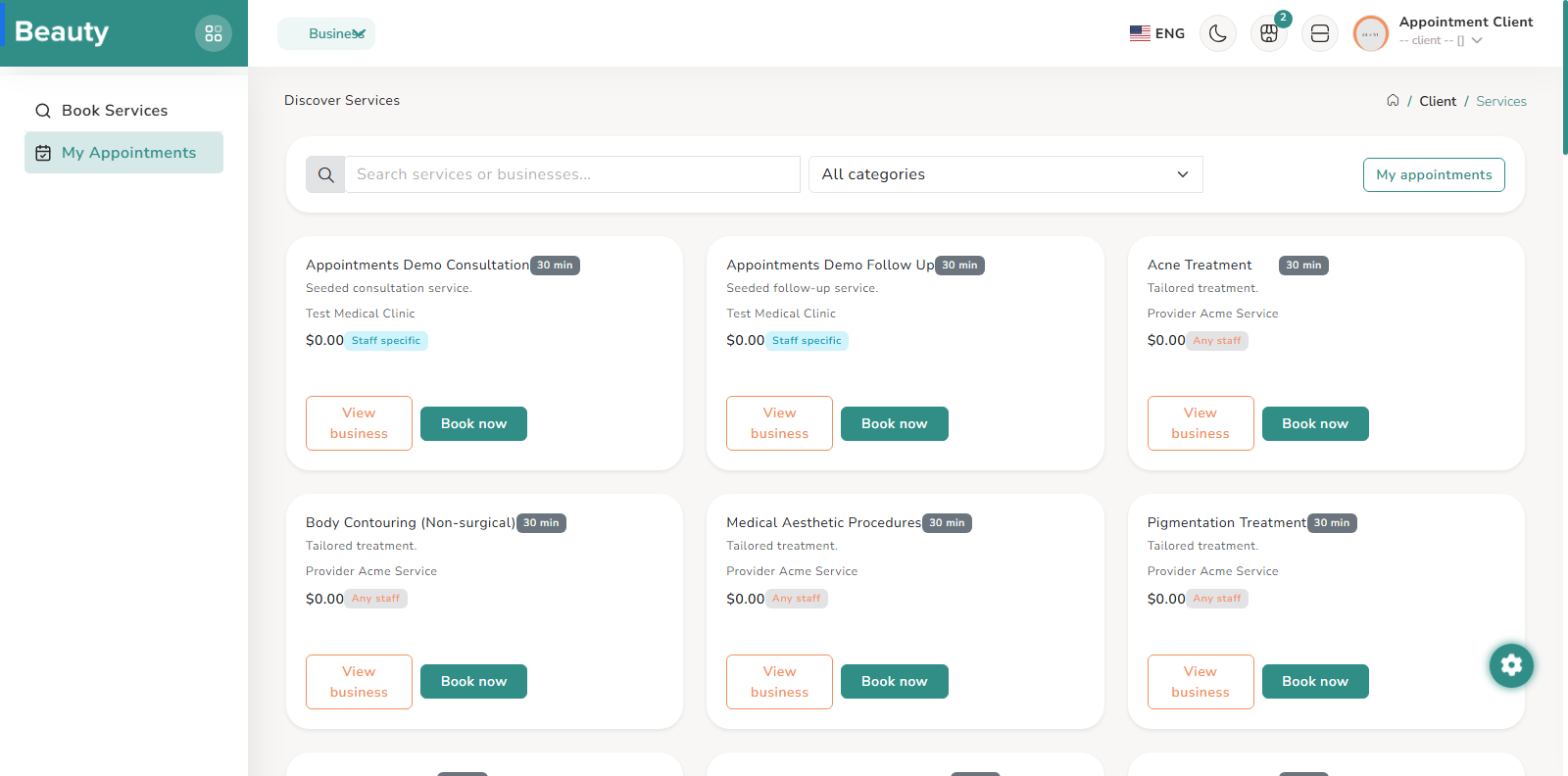
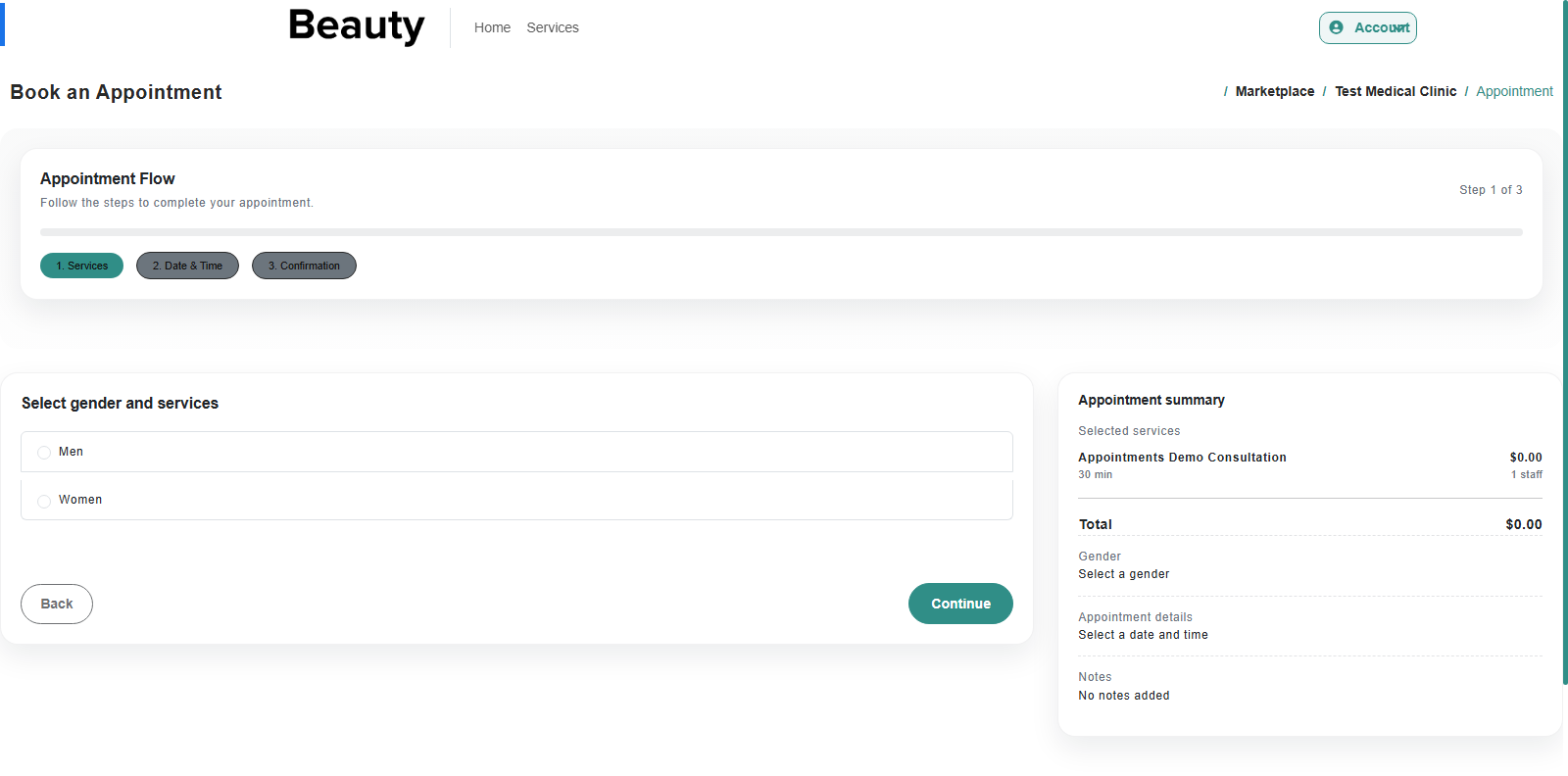
Before the explanation sections, this is the client-facing menu map from current menu logic: 1) Book Services, 2) My Appointments. This is the primary client navigation for signed-in customer workflows. Client access starts from dedicated client login and signup pages, with a register-complete step for invite/token-based completion flows when applicable. In practical use, customers can browse business pages publicly first, then authenticate when the booking flow requires identity and ownership of appointment records. Once signed in, the main navigation keeps the customer in two core spaces: discovery and appointments. Book Services is a search-and-filter marketplace view for clients. The page supports free-text search, category filtering, and card-based service browsing that includes business identity, duration, pricing, and add-on hints. Each card gives two direct paths: view business profile context or proceed to booking immediately. The operational client pattern is browse, narrow, compare, then commit to booking from a selected service card. The booking wizard is a structured multi-step flow that guides clients from intent to confirmation in controlled stages. The sequence moves through gender/context selection, service and staff preferences, date/time selection with available slots, and final confirmation with notes. The page exposes progress state and prevents skipping workflow logic by requiring each stage before completion. In real use, this flow is the main conversion path from service discovery into confirmed appointment creation. The wizard also supports vanity business URLs, so clients can start booking directly from public business pages without first navigating the signed-in discovery list. This keeps acquisition and conversion tightly connected while still ending in authenticated appointment ownership.
Workflow Execution Steps
- Open Book Services -> search/filter services or categories -> review business/service cards -> open booking wizard -> confirm selection and proceed.
- Open booking wizard -> select profile/preferences -> choose service and staff path -> pick date/time slot -> add notes and confirm booking -> verify confirmation page.
- Use vanity business URL entry when applicable, then complete the same authenticated wizard stages to preserve appointment ownership.
Reference Screenshots