Role Navigation
Swipe roles, tap to open submenuProvider • Services
Standalone submenu content with role-aligned workflow and execution checkpoints.
Overview
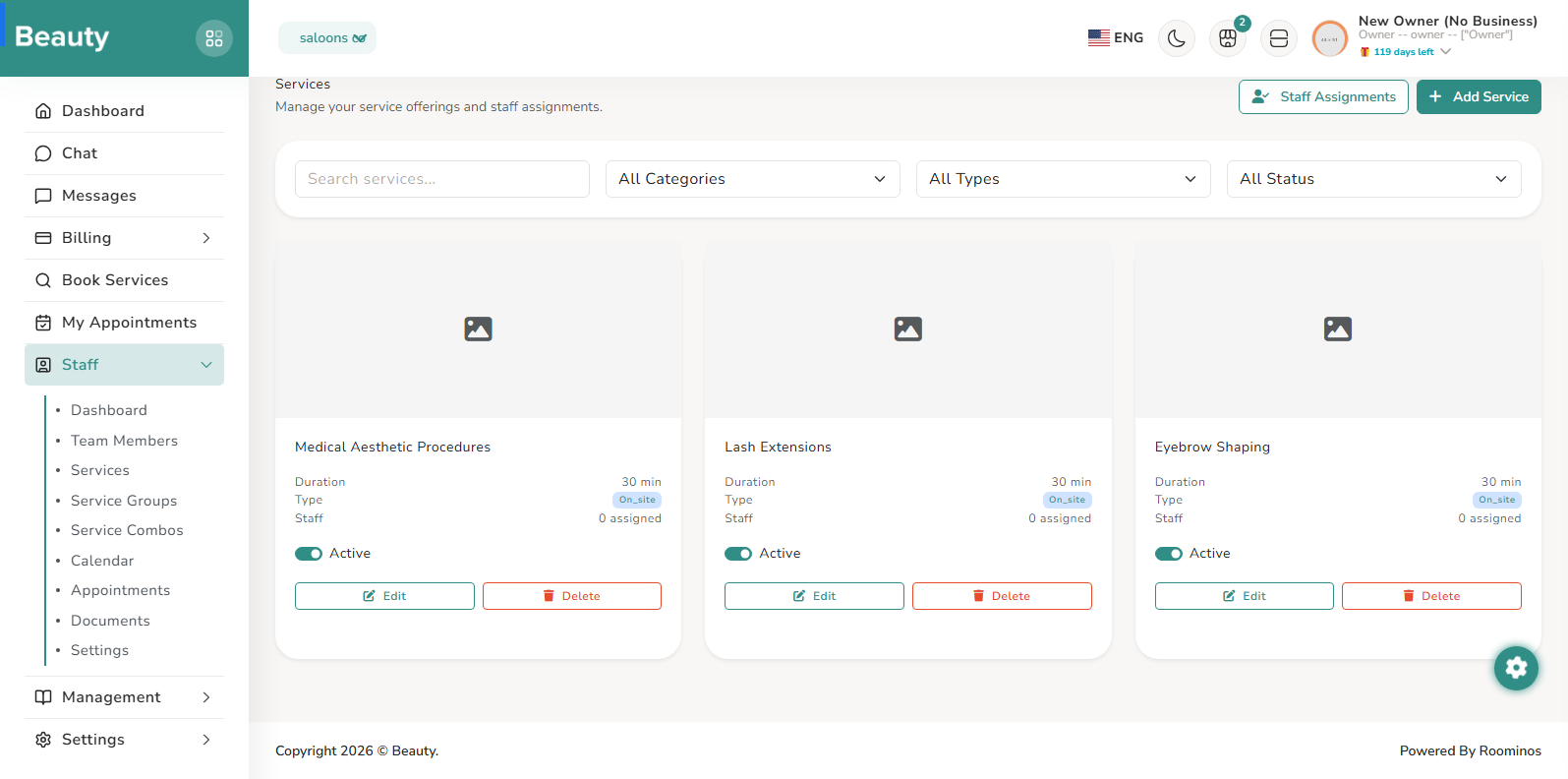
The core Services list behaves as a filter-and-action workspace, where owners search, narrow by category/type/status, toggle active state directly, and move into create or edit flows. Each service card surfaces practical booking data such as duration, price, appointment mode, and assigned staff count, so the page works as both inventory control and quality scan. In day-to-day use, providers usually filter to a service set, check active visibility and staff coverage, then open editing only for items that need correction. The Service form is built as a tabbed editing workflow, not a flat long form. The owner moves through basic details, pricing, appointment behavior, staff scope, and media in a controlled sequence. The staff tab is especially important operationally because it determines whether assignment is open or restricted to selected team members, which directly affects future booking assignment behavior. The media tab supports image upload and replacement so service cards remain visually complete in booking views. The Staff Assignments screen is a bulk matrix for operational capacity planning. Providers can mark staff as bookable, select or clear service eligibility per person, and save at staff-level or across the page. This page is used when service definitions are already correct but delivery coverage must be tuned quickly, such as after hiring changes or seasonal schedule shifts.
Workflow Execution Steps
- Filter to a service set, check active visibility and staff coverage, then open editing only for items that need correction.
- Move through basic details, pricing, appointment behavior, staff scope, and media in controlled sequence.
- Use Staff Assignments for bulk capacity tuning when delivery coverage must be adjusted quickly.
Reference Screenshots