Role Navigation
Swipe roles, tap to open submenuStaff • Dashboard
Standalone submenu content with role-aligned workflow and execution checkpoints.
Overview
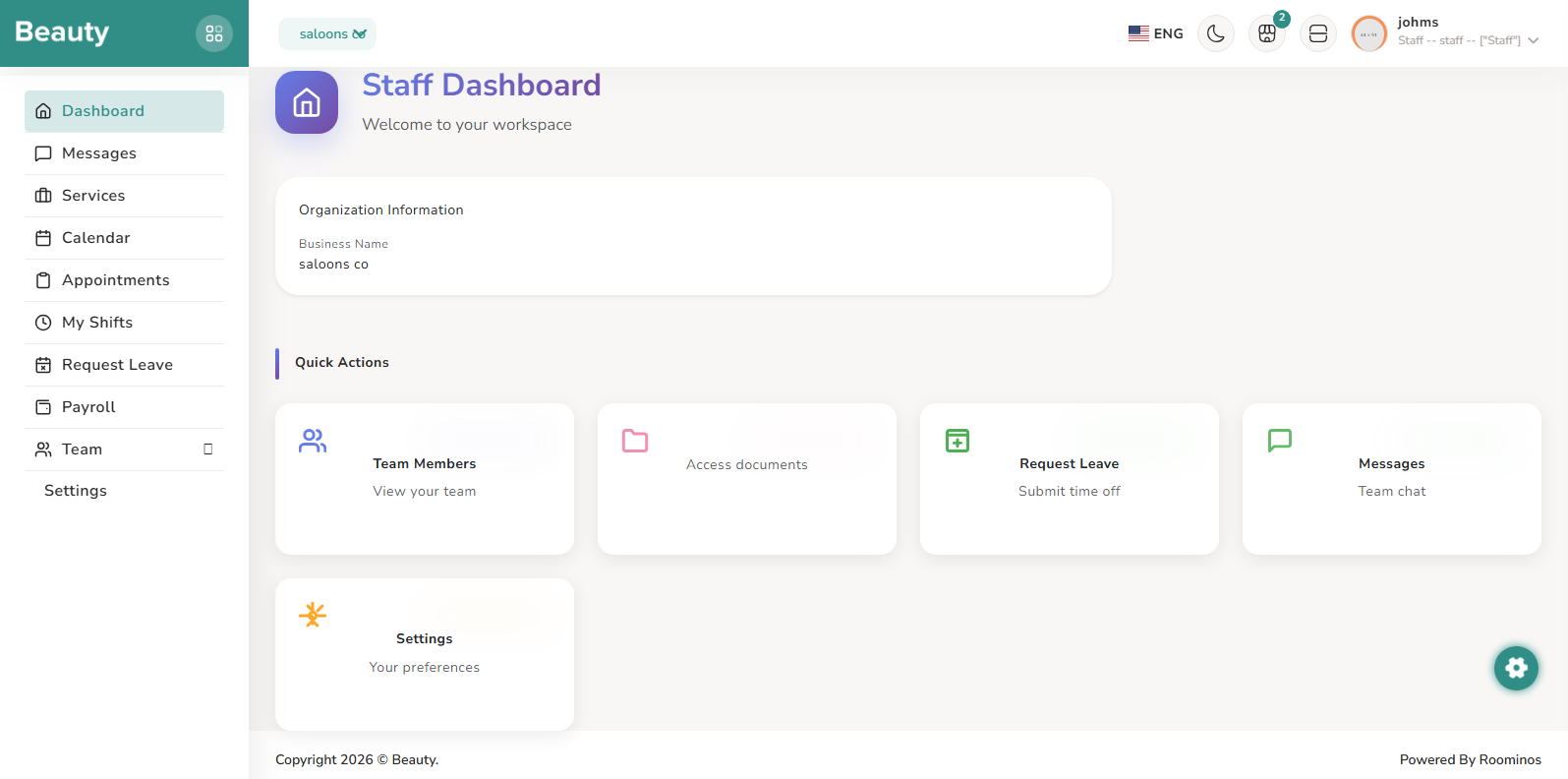
Staff access starts through dedicated team auth entry points, including team login and team signup completion paths. The onboarding and invite model is two-layered: first the identity account is created as a staff-type user, then business access is granted through invite acceptance and membership assignment. In practical use, this means account creation alone is not enough for operational access; effective staff access requires a valid business relationship so the user can enter the staff self-service area with active business context. The staff dashboard is a launchpad rather than a passive summary page. It presents organization information, quick action cards, and direct entry into common tasks such as team viewing, leave requests, messaging, and schedule-related pages. In daily usage, staff members normally start here, confirm today’s organization context, and then move into whichever operational flow is urgent first. The page behaves as an orientation and routing surface, reducing navigation friction for frequent task switching. Staff experience is dynamically filtered by role type, permission checks, business context, and staff entitlement status. Even when a route exists in code, sidebar visibility can still change if required permission or entitlement state is missing.
Workflow Execution Steps
- Open Dashboard and confirm business context, organization details, and quick-action priorities.
- Identify urgent operational flow first, then route into Services, Calendar, Appointments, or Messages.
- Use Dashboard as orientation and return point while switching tasks through the day.
Reference Screenshots